
Processing RTC360 Data – Section 2
In Section 2, RTC360 Review Key Tools in Desktop Software”, the RTC360 sample project has been imported. We will review the Leica Cyclone REGISTER 360 PLUS Toolbars, workflow tabs, and navigation tools.
All topics related to the RTC360 for example how to update the firmware, optimal settings and specifications
In Section 2, RTC360 Review Key Tools in Desktop Software”, the RTC360 sample project has been imported. We will review the Leica Cyclone REGISTER 360 PLUS Toolbars, workflow tabs, and navigation tools.
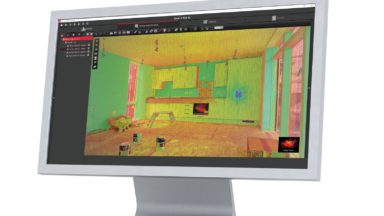
This self-guided Teachable class shows users how to import, verify and process point cloud data in REGISTER 360. It also highlights some of the basic tool sets in the program.
December 2020 Apple released IOS update and offers a new connecting option called LOCAL NETWORK. Users of Cyclone Field 360 need to enter 1. SETTINGS / 2. CYCLONE FIELD 360 and allow connection via the new LOCAL NETWORK option in order to connect to scanner.

Importing RTC360 Data into Cyclone covers transferring the data from the RTC360, file management, creating a blank database in Cyclone and import settings.
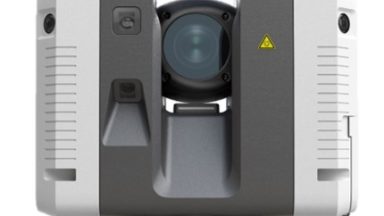
Importing RTC360 Data into Cyclone REGISTER360 covers transferring data from the RTC360, file management and importing data into the program.
Learning Leica is a website that offers additional training course content for current CCP customers.
RTC360 Weblink to Leica Parent page.
Introduction When updating the RTC360’s Firmware, follow these steps: Step 1 – Download and Copy Firmware The RTC360 Firmware may be downloaded at myWorld@Leica Geosystems. https://leica-geosystems.com/en-us/services-and-support/product-services/myworld—customer-portal Scroll down and login. Go to My Downloads/HDS Laser Scanners/RTC360 Laser Scanner/Software/RTC360 Firmware. Click Download. Copy the RTC360.fw onto […]
Recent Comments